Controlled Beta — Windows x64

Salesforce data migration,
without the spreadsheet chaos.

SME is a local-first Salesforce data migration engine built to handle object dependencies, field mappings, and parent-child ordering — all from a browser-based control panel running on your machine.

Watch Demo
Closed-source Windows x64 127.0.0.1:7747 Local control plane

Salesforce migrations become difficult
when the data has relationships.

Moving records between orgs is straightforward — until you hit parent-child dependencies, lookup field conflicts, and records that fail silently in the middle of a run.

Object dependency ordering

Standard tools let you define a migration sequence manually. When you miss a dependency, records fail on insert and the error trail is opaque.

Lookup field resolution

Source IDs are meaningless in the destination org. Translating lookup values requires a reliable ID-to-ID mapping layer that persists across partial runs.

Mid-run failures with no recovery path

A failed bulk job at record 8,400 of 12,000 leaves you with partial data and no clear way to resume without re-inserting duplicates.

No visibility before execution

Most tools move data without a preflight pass. Validation failures are discovered during the run — not before — when the cost of failure is highest.

The SME migration lifecycle

Six stages, end to end. Each stage is explicit and inspectable. Nothing is automated without your approval.

Understand
Connect orgs or
load CSV schema
Plan
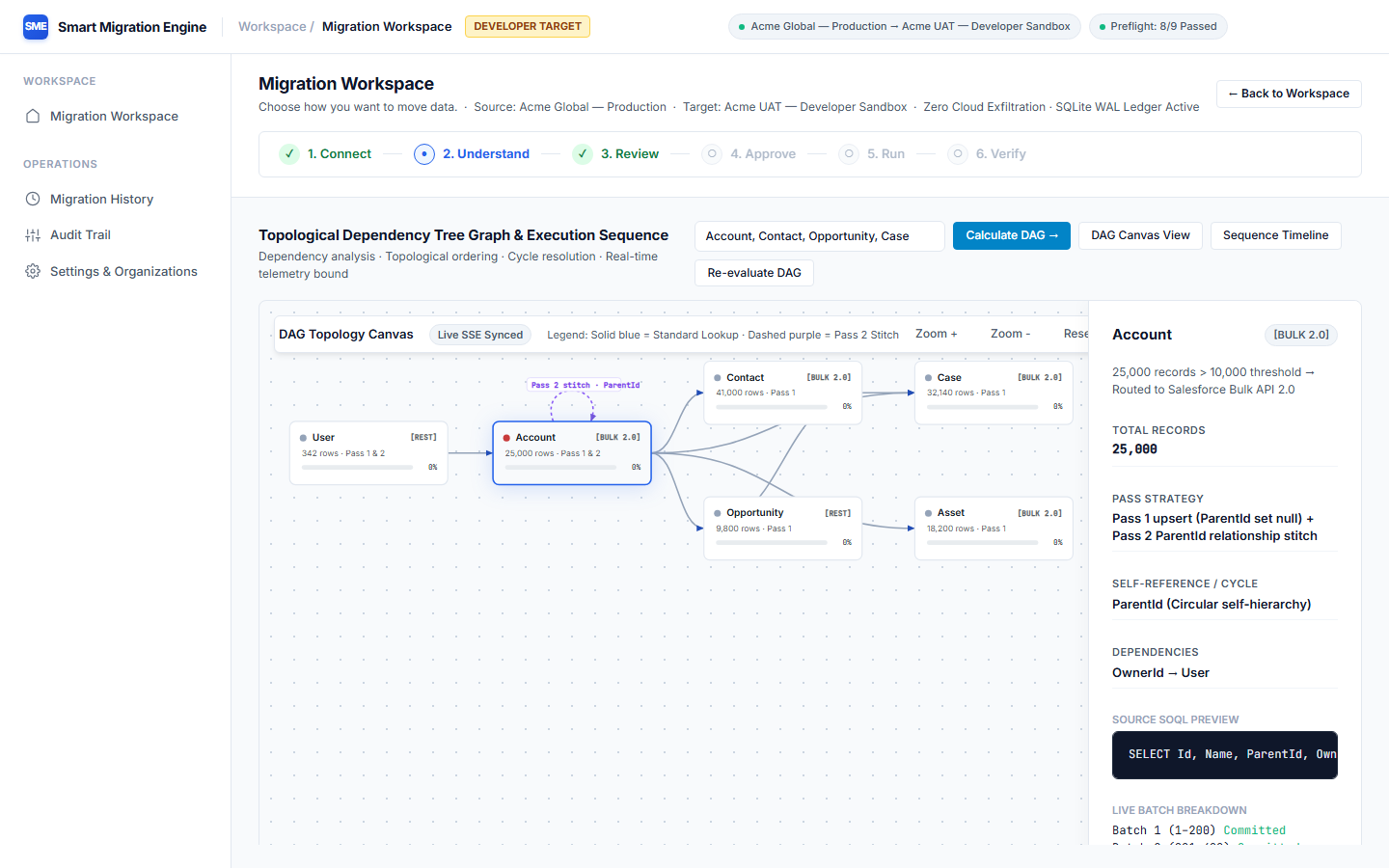
Dependency graph
generation
Validate
Preflight safety
board
Approve
Review mapping
before execute
Execute
Batched insert
with checkpoints
Verify
Record count
reconciliation

Built for migrations that have structure

SME's core engine handles the complexity that makes Salesforce migrations hard: relationships, ordering, field-level detail, and execution reliability.

Dependency-aware ordering

SME builds a directed acyclic graph of your object schema and determines the correct insertion order so parent records always precede their children.

Lookup field resolution

Source Salesforce IDs are automatically mapped to their destination counterparts using a persistent translation ledger maintained across the full run.

Two-pass hierarchy stitching

Self-referencing objects (like Accounts with parent accounts) are resolved with a second insert pass, restoring hierarchy relationships after initial records exist.

Metadata field remediation

System-managed fields that can't be written in the destination org are automatically detected and excluded, preventing insertion errors on every object type.

Preflight validation

Before any data moves, SME runs a full safety board check: field compatibility, required fields, picklist values, and object permissions in the destination org.

Dry-run mode

Execute the full migration pipeline in read-only mode. Records are validated and batched but not inserted — giving you a complete picture before committing.

Resumable execution

Every batch is checkpointed in the local SQLite ledger. If a run fails at any point, SME resumes from the last successful checkpoint — no duplicate inserts.

Verification & reconciliation

After execution, SME performs a reconciliation pass — comparing source and destination record counts per object to surface any gaps in the completed migration.

See SME in action

Two end-to-end walkthroughs showing the full migration pipeline — from org connection to record verification.

Org-to-Org Migration

Connect a source and destination Salesforce org, let SME build the dependency graph, review mappings, run preflight, and execute the full migration with live progress monitoring.

Salesforce → Salesforce Org-to-Org Migration Walkthrough

CSV / Excel Import

Load a CSV or Excel file, map columns to Salesforce fields, validate against the target object schema, and import records with the same dependency-aware execution engine.

CSV / Excel → Salesforce File Import Walkthrough

Move data your way

Whether you're copying records between Salesforce orgs or loading from a structured file, SME uses the same execution engine and safety pipeline.

Org-to-Org

Salesforce
→ Salesforce

Connect source and destination orgs via OAuth. SME queries the source, builds the dependency graph, maps every lookup field, and inserts into the destination in the correct order.

  • OAuth-based org authentication
  • Automatic SOQL query generation
  • Dependency graph from object schema
  • Lookup field ID translation
  • Two-pass hierarchy stitching
  • Batch checkpointing & resume
File Import

CSV / Excel
→ Salesforce

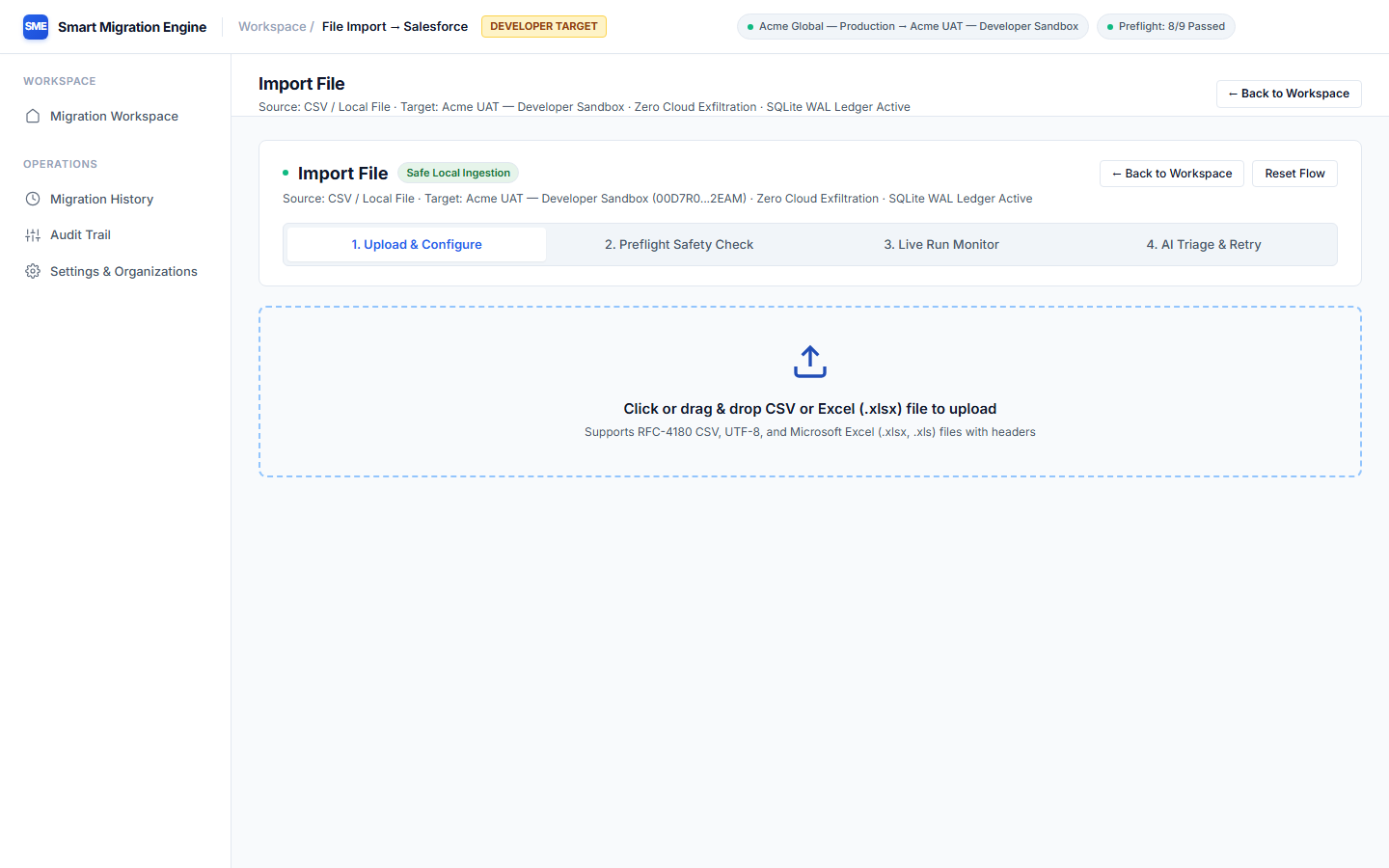
Load a CSV or XLSX file and map its columns to Salesforce object fields through the Cockpit UI. Validation runs against the target schema before any records are inserted.

  • CSV and XLSX file support
  • Visual column-to-field mapping
  • Data type casting & coercion
  • Picklist and required field validation
  • Preflight check before insert
  • Same batch checkpoint engine

Everything runs on your machine

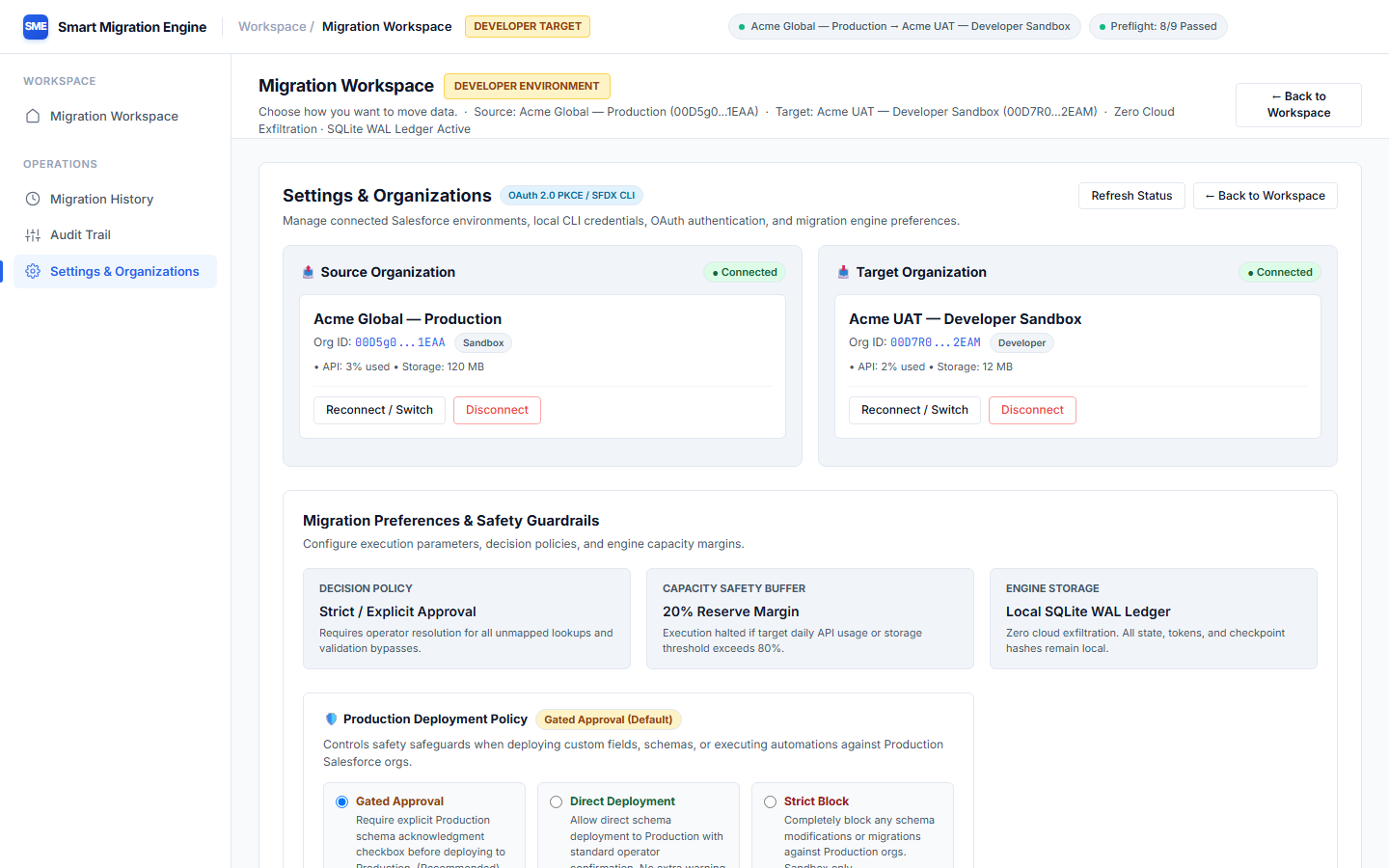
SME's control plane runs locally. Data flows from source to destination through the local engine — your credentials stay in the OS keychain, your migration ledger stays on disk.

Local SQLite ledger
Every batch result, ID mapping, and execution state is persisted locally in a SQLite WAL database on your machine.
OS credential storage
Salesforce OAuth tokens are stored in the operating system's native credential store — not in config files.
Browser-based Cockpit UI
The Cockpit is a local web interface served at 127.0.0.1:7747. All control plane interactions stay on localhost.

Designed to keep credentials local

SME is architected so that your Salesforce credentials and migration data don't leave your workstation during normal operation.

Localhost control plane

The SME server binds to 127.0.0.1 only. It is not accessible over a network interface during normal operation.

OS keychain credential isolation

Salesforce OAuth tokens are encrypted with AES-256-GCM and stored in the OS-native credential store (Windows Credential Manager), not in plaintext config files.

Local SQLite migration ledger

All migration state — batch results, ID maps, execution history — is stored in a local SQLite database. No migration data is transmitted to an external service.

Salesforce OAuth authentication

SME authenticates to Salesforce using standard Connected App OAuth 2.0. Tokens are only used to make API calls directly from the local machine to the Salesforce API.

No cloud telemetry

The current beta version of SME does not contain usage telemetry or analytics reporting. The engine does not make outbound network calls other than to Salesforce API endpoints.

Closed-source binary

SME is distributed as a pre-built Windows executable. The source code is not published. The beta binary can be verified by SHA-256 checksum before execution.

Note on security claims: The properties described above reflect the current architecture and design intent of the beta release. They are not formal security certifications or compliance guarantees. Evaluate SME's suitability for your environment independently.

Request Beta Access

SME is currently in controlled beta. Beta access is provided manually after review for Windows x64 evaluation. Complete the form below, and we'll review your request and contact you by email.

Controlled beta cohort · Manual review · Windows x64 evaluation

Thanks for your interest in SME Beta.

We'll review your request and contact you by email. SME is currently in controlled beta, and access is provided manually after review.

Package: SME-Beta-0.1.0-Windows-x64.zip

SHA-256: 46c64a1100845f07da610523632e7f26834ef476c9fd08e8b9ada85ecaebe73f

If your email app didn't open automatically, send your request directly to:
lakhan.ahirrao.dev@gmail.com

From ZIP to live migration in minutes

SME is a self-contained Windows binary. No runtime to install. Here's everything you need to go from zero to your first migration run.

Prerequisites

Windows 10 / 11  (64-bit)
Required — SME ships as a Windows x64 native binary. Linux/macOS not yet supported in beta.
Salesforce Connected App
You need a Consumer Key (Client ID) and Consumer Secret from a Salesforce Connected App in your orgs. SME uses standard OAuth 2.0 — no admin credentials are stored in files.
Salesforce CLI (sf) — optional
If you have sf (Salesforce CLI v2) installed, SME can discover your authenticated orgs automatically. Install from developer.salesforce.com/tools/salesforcecli. Not required — SME works fine without it.
No Node.js · No Python · No installer
All runtime dependencies are bundled inside sme.exe. Nothing else to install or configure.

Launch SME from the ZIP

Step 1 Extract the ZIP

Extract SME-Beta-0.1.0-Windows-x64.zip to any folder, for example C:\SME\. Right-click → Extract All, or use PowerShell:

PowerShell
PS> Expand-Archive -Path SME-Beta-0.1.0-Windows-x64.zip -DestinationPath C:\SME\
Step 2 Launch the Cockpit UI

The quickest way — double-click start-sme.bat inside C:\SME\. It starts the control plane and opens your browser automatically. Or from a terminal:

PowerShell — C:\SME\
PS C:\SME> .\start-sme.bat
Starting SME control plane on 127.0.0.1:7747...
✓ SME is running. Open http://127.0.0.1:7747 in your browser.
# Or directly via the binary:
PS C:\SME> .\sme.exe ui
Step 3 Verify the engine is working
PowerShell
PS C:\SME> .\sme.exe --version
0.1.0
PS C:\SME> .\sme.exe --help
Smart Migration Engine v0.1.0
Commands: login, orgs, plan, run, resume, preflight, reconcile, retry, ui ...
Step 4 Connect your Salesforce org

Use the Cockpit UI's Connection Center to log in via browser OAuth — or from the CLI:

PowerShell
# Production or Developer org:
PS C:\SME> .\sme.exe login
Opening browser for Salesforce OAuth login...
# Sandbox org:
PS C:\SME> .\sme.exe login --sandbox
# Confirm your connected orgs:
PS C:\SME> .\sme.exe orgs
● Acme Production (00D5g000004abc1EAA) source
● Acme UAT Sandbox (00D7R000000xyz2EAM) target
Step 5 Open the Cockpit and start your migration

Navigate to http://127.0.0.1:7747 in your browser. The Cockpit walks you through every step: connect orgs → scope objects → review dependency graph → map fields → run preflight → execute → verify.

CLI quick reference

All commands are run from inside your extracted C:\SME\ folder. The Cockpit UI covers the same workflow visually — these CLI commands are for scripting and automation.

Command What it does
.\sme.exe --versionPrint engine version
.\sme.exe --helpList all available commands and flags
.\sme.exe uiOpen Cockpit in browser at 127.0.0.1:7747
.\sme.exe loginAuthenticate a production org via browser OAuth
.\sme.exe login --sandboxAuthenticate a sandbox org via browser OAuth
.\sme.exe orgsList all connected / SF CLI discovered orgs
.\sme.exe plan --objects Account,ContactGenerate dependency graph and field mappings
.\sme.exe preflight --plan plan.jsonRun preflight safety checks before executing
.\sme.exe run --plan plan.jsonExecute migration with SQLite checkpointing
.\sme.exe resume --run-id <id>Resume an interrupted run from last checkpoint
.\sme.exe retry --run-id <id>Retry only failed records from a previous run
.\sme.exe reconcile --run-id <id>Verify record counts: source vs. target vs. ledger
Start with the Cockpit UI (.\sme.exe ui) — it guides you through every step with live validation and visual feedback. Use the CLI for scripting or automation once you're familiar with the workflow.

Verify your download

Always verify the SHA-256 checksum of the SME beta package before running the executable.

SME-Beta-0.1.0-Windows-x64 — SHA-256SUMS
File SME-Beta-0.1.0-Windows-x64.zip
Version 0.1.0 (Beta)
Platform Windows x64
SHA-256 46c64a1100845f07da610523632e7f26834ef476c9fd08e8b9ada85ecaebe73f
Verify on Windows PowerShell:
(Get-FileHash 'SME-Beta-0.1.0-Windows-x64.zip' -Algorithm SHA256).Hash.ToLower()

The output should match the hash above exactly.